Subsections of Python sessions
Session 1: Catch the Stars
In this session you build a mini game: a star falls down and you catch it with a basket. By the end of the session everything moves, the game keeps track of how many stars you catch, and you have your first game of your own.
What you’ll learn today
- Using variables to position objects
- The
draw() function: what you draw every frame - The
update() function: what changes every frame - Keyboard input: moving with the arrow keys
Step 0: Setup
- Open Thonny.
- Download the starter via this link, unpack the ZIP and open
main.py in Thonny. - Click the green Run button. You see a dark blue window with a basket at the bottom and a star at the top, but nothing moves yet.
- Problems? Take a look at Installing Thonny.
Step 1: Let the star fall
The update() function runs 60 times per second. So everything you put in it runs 60 times per second. That is how movement works in a game.
Right now there is only pass in update(). That means “do nothing”. Remove pass and add this:
def update():
    star.y = star.y + 3
Click Run. The star now falls from top to bottom. When it falls off the screen, it disappears. We’ll fix that in a moment.
What happens here? star.y is the vertical position of the star. The bigger y, the lower on the screen. By adding + 3 every frame, the star drops a little each time.
The coordinate system: (0, 0) is at the top left, not at the bottom left like in maths. x goes to the right, y goes down. The star starts at y = 30 (almost at the top), the basket sits at y = 370 (almost at the bottom).
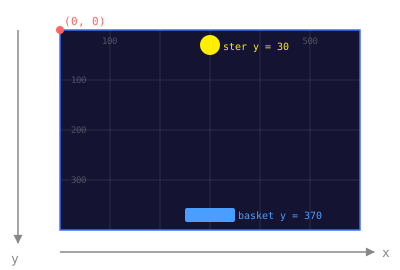
Move your mouse over the screen below to see the coordinates:
Move your mouse over the screen to see the coordinates.
Want to know more about how the screen works? → Coordinates explained
Adjust the sliders and watch how actor.x and actor.y change as the actor moves:
Step 2: ✅ Basic: move the basket
Time to steer the basket. Pygame Zero has a handy keyboard variable that keeps track of which keys are pressed.
Add this to update(), after the line about the star:
def update():
    star.y = star.y + 3

    if keyboard.left:
        basket.x = basket.x - 5
    if keyboard.right:
        basket.x = basket.x + 5
Click Run and use the arrow keys. The basket moves along now!
Tip (optional, counts as Stretch): If you move the basket too far left or right, it disappears off the screen. Can you add a check that stops that? Hint: use WIDTH and compare it with basket.x.
Step 3: ⭐ Stretch: catch the star
Now you want something to happen when the basket touches the star. For that you use colliderect. It checks whether two rectangles overlap.
Add this to update():
    if star.colliderect(basket):
        star.y = 0
The star jumps back to the top when you catch it. But what if you miss it? Add this too:
    if star.y > HEIGHT:
        star.y = 0
Bonus: Make the star come back at a random spot every time. Add this at the top of the file:
Then replace star.y = 0 (in both places) with:
        star.x = random.randint(20, WIDTH - 20)
        star.y = 0
Now the star falls at a different spot every time. Much harder to catch!
Step 4: 🔥 Expert: add a score
A real game keeps track of what you score. For that you need a variable that lives outside the functions: a global variable.
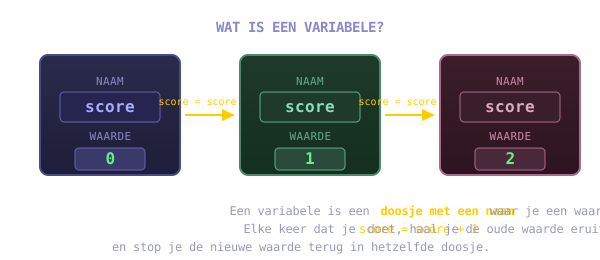
Click the button below to see how score changes every time you catch a star:
Add this at the top, outside all functions (after the lines about basket and star):
In draw(), add:
screen.draw.text(f"Score: {score}", topleft=(10, 10), color="white")
In update(), change the catch code so the score goes up:
    if star.colliderect(basket):
        global score
        score = score + 1
        star.x = random.randint(20, WIDTH - 20)
        star.y = 0
global score tells Python: “I mean the score from outside this function, not a new local variable.” Without that line you get an error message.
Click Run. The score sits at the top left and goes up every time you catch a star!
Showcase
Show your game to a coach and a buddy. Tell them what you made: what works, and what extras you added.
See you next time!
“Next time: things that FIGHT BACK. And they go BOOM, with real sound.”
Take it home
Try one of these extensions at home. Each one comes with a code hint to get you going.
Limit lives — Add levens = 3. On a miss (star.y > HEIGHT): levens -= 1. Stop the game when levens == 0 with game_over = True and show “Game Over” in draw().
Random star colour — On every catch: give the star a new colour with random.randint(50, 255) for red, green and blue. Start at 50, not at 0 — otherwise the star is sometimes black and invisible.
Background — Draw fixed stars in the background in draw() before the score. Use screen.draw.filled_circle(x, y, 2, "white") at 20 random positions. Seed random.seed(42) so they don’t flicker.
Second star — Make sterren = [star, Actor("star")]. Give every star its own x. Update both of them in update() and draw them in draw().
High score — Keep track of high_score. If score > high_score: high_score = score. Show f"Best: {high_score}" next to the score.
Smaller basket — After every 5 points: basket.width = max(30, basket.width - 5). Reset basket.width on a restart.
Bomb — Add a red circle that falls now and then. Use a timer bom_timer and random.randint to decide when it shows up. If the basket hits the bomb: score -= 2.
Difficulty — After every 5 stars: raise the falling speed by 1. Build in a maximum: max(3, star_snelheid).
Stuck? Ask a coach at the next dojo, or just try something else. Programming is doing.
View the cheatsheet for this session
Session 2: Dodge Meteors
Your spaceship drifts in the dark of space while meteors come down from above. Dodge them, or lose a life. The longer you survive, the faster they go. And this time you also build Dojo Defender: the bigger project that grows every session.
What you’ll learn today
- Using lists to keep track of several objects
- Spawning (creating) and removing objects
- Keeping track of lives and showing a game-over screen
- Dojo Defender: adding your own spaceship to the bigger project
Step 0: Setup
- Open Thonny.
- Download the starter via this link, unpack the ZIP and open
main.py. - Click Run. You see your spaceship at the bottom, but no meteors are falling yet.
- Problems? Take a look at Installing Thonny.
Step 1: Let meteors spawn
Fill in the spawn_meteor() function. A meteor is an Actor that starts at the top of the screen at a random x position:
import random

def spawn_meteor():
    rock = Actor('meteor')
    rock.x = 0
    rock.y = random.randint(30, WIDTH - 30)
    meteors.append(rock)
Call the function in update(), but not every frame, otherwise the screen fills up straight away. The update() function runs 60 times per second. Use that to keep a counter:
See below how fast a meteor moves at different speeds and how many pixels that is per second:
Use a counter:
# at the top, outside the functions:
timer = 0

def update():
    global timer
    timer += 1
    if timer % 60 == 0:   # every second (60 frames)
        spawn_meteor()
Click Run. After a second the first meteor appears, but it doesn’t move yet.
Step 2: ✅ Basic: let meteors fall and disappear
Let all the meteors in the list drop, and remove them when they fall off the screen:
def update():
    global timer
    timer += 1
    if timer % 60 == 0:
        spawn_meteor()

    for rock in meteors[:]:      # [:] = copy so you can remove safely
        rock.y += 4
        if rock.y > HEIGHT + 30:
            meteors.remove(rock)
Detecting collisions: If a meteor hits the ship, you lose a life. Add this in the loop:
        if rock.colliderect(ship):
            meteors.remove(rock)
            global lives
            lives -= 1
            if lives <= 0:
                # TODO: game over (step 3)
                pass
Step 3: ⭐ Stretch: game over and speeding up
Game over: Add a variable game_over = False at the top. If lives == 0, set game_over = True. In draw(), show text when game_over is True:
    if game_over:
        screen.draw.text(
            "GAME OVER",
            center=(WIDTH / 2, HEIGHT / 2),
            color="red",
            fontsize=60,
        )
Stop the movement in update() when game_over is True:
def update():
    if game_over:
        return
    ...
Raising the speed: Make meteors go faster as the score rises:
snelheid = 3 + score // 5   # every 5 points, +1 speed
rock.y += snelheid
Step 4: 🔥 Expert: score and several meteor sizes
Score: Every second you survive, +1 point. Add global score and raise it in update():
    if timer % 60 == 0:
        global score
        score += 1
        spawn_meteor()
Several sizes: Make small, medium and large meteors. Use a schaal variable and adjust the hitbox:
def spawn_meteor():
    rock = Actor('meteor')
    rock.x = random.randint(30, WIDTH - 30)
    rock.y = 0
    rock.schaal = random.choice([0.5, 1.0, 1.5])
    meteors.append(rock)
Smaller meteors move faster; bigger ones are harder to dodge but give more points.
Dojo Defender
Download the Dojo Defender starter for today.
This is the base of the project that grows every session. Today you add your spaceship and make it move with the arrow keys.
Were you not there last time? No problem — download the solution from last time and you can join in straight away.
The complete Dojo Defender worksheet is on the Dojo Defender page.
Showcase
Show your game to a coach and a buddy. How long do you survive? Who gets the highest score?
See you next time!
“Next time: your own spaceship SHOOTS BACK. Enemies in formation, and you blast them away.”
Take it home
- Easy: change the background colour to deep purple or dark green.
- Medium: add a sound when a meteor hits the ship (
sounds/hit.wav). - Hard: make meteors faster as there are more of them on the screen (not just the score).
- Very hard: add power-ups: a golden star that gives you an extra life when you touch it.
View the cheatsheet for this session
Session 3: Space Blaster
Enemies stand in formation at the top of the screen. You’re at the bottom with a spaceship and one goal: knock them all out before they reach the bottom. Press SPACE to shoot, and don’t miss.
What you’ll learn today
- Keeping track of bullets in a list
- Creating a bullet when you press SPACE
- Collision between bullets and enemies
- Game over when an enemy reaches the bottom
Step 0: Setup
- Open Thonny.
- Download the starter via this link, unpack the ZIP and open
main.py. - Click Run. You see the ship at the bottom and 12 enemies in a grid, but nothing moves and you can’t shoot yet.
Step 1: Let the ship move
The ship already moves with the arrow keys. Check the code in update(). Make sure the ship doesn’t go off the screen:
if keyboard.left and ship.x > 30:
    ship.x -= 5
if keyboard.right and ship.x < WIDTH - 30:
    ship.x += 5
Step 2: ✅ Basic: shooting with SPACE
Fill in the shoot() function. A bullet is an Actor that starts at the position of the ship:
def shoot():
    kogel = Actor('bullet')
    kogel.x = ship.x
    kogel.y = ship.y - 20
    bullets.append(kogel)
Call shoot() when the space bar is pressed. Use on_key_down (Pgzero style):
def on_key_down(key):
    if key == keys.SPACE:
        shoot()
Make the bullets move up in update() and remove them when they go off the screen:
for kogel in bullets[:]:
    kogel.y -= 8
    if kogel.y < -10:
        bullets.remove(kogel)
Step 3: ⭐ Stretch: hitting enemies
colliderect checks whether the rectangular hitbox of two actors overlaps. Move your mouse over the screen below to see when that happens:
Check in update() whether a bullet hits an enemy:
for kogel in bullets[:]:
    kogel.y -= 8
    if kogel.y < -10:
        bullets.remove(kogel)
        continue
    for vijand in enemies[:]:
        if kogel.colliderect(vijand):
            bullets.remove(kogel)
            enemies.remove(vijand)
            global score
            score += 10
            break
Win condition: If enemies is empty, you’ve won:
    if not enemies:
        screen.draw.text("YOU WIN!", center=(WIDTH/2, HEIGHT/2), color="yellow", fontsize=60)
Step 4: 🔥 Expert: enemies move and game over
Make the enemies come down slowly. Use a timer:
vijand_timer = 0

def update():
    global vijand_timer
    vijand_timer += 1
    if vijand_timer % 90 == 0:   # every 1.5 seconds
        for vijand in enemies:
            vijand.y += 20
Game over when an enemy reaches the bottom:
        for vijand in enemies:
            if vijand.y > HEIGHT - 30:
                global game_over
                game_over = True
Faster shooting rate: Build in a cooldown so the ninja can’t shoot endlessly fast:
shoot_cooldown = 0

def update():
    global shoot_cooldown
    if shoot_cooldown > 0:
        shoot_cooldown -= 1

def on_key_down(key):
    global shoot_cooldown
    if key == keys.SPACE and shoot_cooldown == 0:
        shoot()
        shoot_cooldown = 15
Showcase
Show your game to a coach. How fast do you clear all the enemies? Compare scores with a buddy.
See you next time!
“Next time: two players, one ball: PONG. And you learn real pygame without pgzrun.”
Take it home
- Easy: change the colour of the bullets or the enemies.
- Medium: make enemies move left and right (one direction per step, turn around at the edge).
- Hard: add a second wave: when all the enemies are gone, spawn a new row that comes down faster.
- Very hard: let enemies shoot back too: send a bullet down at random every N frames.
View the cheatsheet for this session
Dojo Defender
Download the Dojo Defender starter for today.
Were you not there last time? Download the solution from session 1 and start from there.
The complete worksheet: Dojo Defender Session 2.
Session 4: Pong
Two paddles, one ball: the classic game of Pong. But there’s a surprise: this session you write the game in real pygame, without pgzrun. You learn to set up the game loop yourself. That’s how most real games work.
What you’ll learn today
- The pygame game loop: events, update, draw
pygame.Rect for rectangles and collisions- Making the ball bounce (reversing the speed)
- Keeping score for two players
Step 0: Setup
- Open Thonny.
- Download the starter via this link, unpack the ZIP and open
main.py. - Click Run. You see two paddles and a yellow ball in the middle, but the ball doesn’t move yet.
Difference with pgzrun: There are no draw() and update() functions any more. Everything sits in one while running: loop.
Step 1: Make the ball move
Find the lines:
# bal.x += ball_dx  # turn this on when you're done
# ball.y += ball_dy
Remove the # in front of both lines. But first set a starting speed. Find ball_dx, ball_dy = 0, 0 and change it to:
Click Run. The ball moves now, but it disappears off the edge. We’ll fix that in step 2.
Step 2: ✅ Basic: the ball bounces off the walls and the paddles
Add the following after ball.x += ball_dx and ball.y += ball_dy:
# Bounce off the top and bottom edge
if ball.top <= 0 or ball.bottom >= HEIGHT:
    ball_dy = -ball_dy

# Bounce off the paddles
if ball.colliderect(left_paddle) or ball.colliderect(right_paddle):
    ball_dx = -ball_dx
The ball now bounces forever. Also add limits for the paddles, so they don’t go off the screen. Have a look at the code that’s already in the starter.
Step 3: ⭐ Stretch: keeping score
If the ball leaves the screen on the left, the right-hand player scores. If it goes out on the right, the left-hand player scores:
# Ball out on the left → right scores
if ball.left <= 0:
    score_right += 1
    ball.center = (WIDTH // 2, HEIGHT // 2)
    ball_dx = 4

# Ball out on the right → left scores
if ball.right >= WIDTH:
    score_left += 1
    ball.center = (WIDTH // 2, HEIGHT // 2)
    ball_dx = -4
The score is already drawn in draw(). Check that the variables are right.
Step 4: 🔥 Expert: win condition and speeding up
Win at 5 points: Add a variable won. When a player reaches 5, stop the game:
if score_left >= 5:
    won = "Left wins!"
if score_right >= 5:
    won = "Right wins!"
Show the winner on the screen and stop the movement.
Speeding up: After every rally the ball gets a bit faster:
if ball.colliderect(left_paddle) or ball.colliderect(right_paddle):
    ball_dx = -ball_dx * 1.05   # 5% faster
    ball_dy = ball_dy * 1.05
Build in a maximum: ball_dx = max(-12, min(12, ball_dx)).
Showcase
Play a match against a buddy. First to 5 points wins. Show it to a coach.
See you next time!
“Next time: Breakout: the ball smashes bricks to pieces. And there’s SOUND.”
Take it home
- Easy: change the colour of the ball or the paddles.
- Medium: make one paddle bigger as that player falls behind (handicap).
- Hard: add an AI opponent: the right paddle follows the ball automatically.
- Very hard: add power-ups: an item that doubles the ball or makes the paddle bigger.
Dojo Defender
Today Dojo Defender moves to real Pygame!
Download the starter.
Were you not there? Download the solution from session 2.
Worksheet: Dojo Defender Session 3.
View the cheatsheet for this session
Session 5: Breakout
A ball bounces back and forth and smashes rows of coloured bricks to pieces. You steer the paddle to keep the ball in the air. And this time you hear it too: there are sound effects on every collision.
What you’ll learn today
- Loading and playing sound with
pygame.mixer - Collisions with several objects (a list of bricks)
- Making the ball bounce in the right direction
- Building a win and lose screen
Step 0: Setup
- Open Thonny.
- Download the starter via this link, unpack the ZIP and open
main.py. - Click Run. You see the paddle, the ball and the bricks. The ball already moves horizontally but not vertically. You’re going to change that.
Step 1: Make the ball move vertically
Find this line in the starter:
ball_dx, ball_dy = 4, 0
# ball_dy = -4  ← remove the # to make the ball move!
Remove the # in front of ball_dy = -4. Now the ball has a vertical speed. Add movement in the game loop (look for the update section):
ball.x += ball_dx
ball.y += ball_dy
Click Run. The ball moves diagonally but disappears off the edges.
Step 2: ✅ Basic: ball bounces off walls and paddle
Add bouncing:
# Top, left and right edge
if ball.left <= 0 or ball.right >= WIDTH:
    ball_dx = -ball_dx
if ball.top <= 0:
    ball_dy = -ball_dy

# Paddle
if ball.colliderect(paddle):
    ball_dy = -ball_dy
    if snd_hit:
        snd_hit.play()
Lives: If the ball reaches the bottom, you lose a life:
if ball.top > HEIGHT:
    levens -= 1
    # Reset the ball on top of the paddle
    ball.center = (paddle.centerx, paddle.top - BALL_SIZE)
    ball_dy = -4
Step 3: ⭐ Stretch: breaking bricks
Check the collision with every brick in the loop:
for steen in stenen[:]:
    if ball.colliderect(steen['rect']):
        stenen.remove(steen)
        ball_dy = -ball_dy
        score += 10
        if snd_hit:
            snd_hit.play()
        break  # break only one brick per frame
Win condition: If all the bricks are gone, the ninja has won. Show a message:
if not stenen:
    # show win screen
Step 4: 🔥 Expert: lives, explosion sound and speed
Explosion sound when a brick breaks (use snd_explode from the starter):
if snd_explode:
    snd_explode.play()
Game over at 0 lives: show a screen and stop the ball.
Speeding up as fewer bricks are left:
snelheid_factor = 1 + (1 - len(stenen) / totaal_stenen) * 0.5
ball_dx_huidig = ball_dx * snelheid_factor
A new row of bricks when everything is gone: call stenen = maak_stenen() again and raise the difficulty.
Showcase
Who clears the most bricks? Compare scores and show your coach the longest streak.
See you next time!
“Next time: gravity. Your character falls, and you have to make it jump on platforms.”
Take it home
- Easy: change the colours of the bricks to your favourite colours.
- Medium: make some bricks twice as strong (they have to be hit twice).
- Hard: add a power-up that makes the paddle wider for a while.
- Very hard: add a second ball that spawns when score > 50.
View the cheatsheet for this session
Dojo Defender
Dojo Defender gets a menu and new enemy types!
Download the starter.
Were you not there? Download the solution from session 3.
Worksheet: Dojo Defender Session 4.
In this session you build a micro-platformer. Your player has gravity, can jump, and collects stars on platforms. For the first time you use pygame directly, without pgzrun, and you add sound effects with pygame.mixer.
What you’ll learn today
- Simulating gravity with a
vel_y variable - Jumping by making
vel_y negative - Detecting platform collisions with
pygame.Rect - Collecting items (collision with stars)
- Playing sounds with
pygame.mixer
Step 0: Setup
- Open Thonny.
- Download the starter via this link, unpack the ZIP and open
main.py in Thonny. - Click the green Run button. You see a window with a player, platforms and stars, but the player doesn’t fall yet.
- Problems? Ask a coach.
Step 1: Gravity
In a platformer the player falls down all the time, unless they’re standing on a platform. We simulate that with vel_y: a vertical speed that grows every frame because of gravity.
Find the # STEP 1 comment in main.py and replace the pass with:
# Apply gravity
vel_y += GRAVITY
player_rect.y += vel_y

# Check whether the player is standing on a platform
on_ground = False
for platform in platforms:
    if (player_rect.colliderect(platform) and vel_y > 0):
        player_rect.bottom = platform.top
        vel_y = 0
        on_ground = True
GRAVITY = 0.5 is already at the top of the file. Click Run. The player now falls onto the nearest platform and stays there.
What happens here? Every frame vel_y gets a bit bigger (the player accelerates downwards). If the player touches a platform while falling down (vel_y > 0), you put their bottom edge (bottom) exactly on top of the platform and stop the fall (vel_y = 0).
Step 2: ✅ Basic: jumping
A platformer without jumping is only half finished. Press SPACE to jump: that’s nothing more than suddenly making vel_y negative.
Find the # STEP 2 comment and add:
keys = pygame.key.get_pressed()
if keys[pygame.K_LEFT]:
    player_rect.x -= SPEED
if keys[pygame.K_RIGHT]:
    player_rect.x += SPEED

# Jumping — only when you're standing on the ground
if keys[pygame.K_SPACE] and on_ground:
    vel_y = -12
Click Run and test:
- Arrow keys: move left/right
- SPACE: jump up
Tip: If the jump feels too high or too low, change -12 to -10 (jump lower) or -15 (jump higher).
Step 3: ⭐ Stretch: collecting stars
Let’s add something to collect. The starter already has a stars list with pygame.Rect objects. You write the collision detection.
Find the # STEP 3 comment:
for star in stars[:]:  # [:] so you can remove safely while looping
    if player_rect.colliderect(star):
        stars.remove(star)
        score += 1
And in the drawing function (look for # DRAW STARS):
for star in stars:
    pygame.draw.polygon(screen, YELLOW, star_points(star.centerx, star.centery, 12, 5))
star_points() is already defined in the starter. It works out the points of a 5-pointed star.
At the top of the game there’s score = 0. Draw the score on the screen (look for # DRAW SCORE):
score_surf = font.render(f"Stars: {score}", True, WHITE)
screen.blit(score_surf, (10, 10))
Step 4: 🔥 Expert: sound and win screen
Now you add a jump sound and a win screen for when all the stars have been collected.
Loading sound (this is already in the starter; check that jump.wav is in the sounds/ folder):
pygame.mixer.init()
jump_snd = pygame.mixer.Sound("sounds/jump.wav")
Playing the sound when you jump: add it to the jump code:
if keys[pygame.K_SPACE] and on_ground:
    vel_y = -12
    jump_snd.play()
Win screen: add it after the star loop:
if len(stars) == 0:
    win_surf = font.render("You win! All stars collected!", True, YELLOW)
    screen.blit(win_surf, (WIDTH // 2 - win_surf.get_width() // 2, HEIGHT // 2))
    pygame.display.flip()
    pygame.time.wait(3000)
    running = False
Showcase
Show your game to a coach and a buddy. Can you collect all the stars before the time runs out?
Dojo Defender
Today’s Dojo Defender snapshot builds on session 5:
- Parallax star background — three layers of stars, each with its own speed
- Particle effects — exhaust, explosion debris, sparks
- Destructible asteroids — big → med → small → gone
Download the Dojo Defender starter or solution.
See you next time!
“Next time: click on bugs and ZAP them away, with your own classes.”
Take it home
Try one of these extensions at home:
- Easy: change the colour of the player when they’re in the air.
- Medium: add a timer. The player has 30 seconds to collect all the stars.
- Hard: add an enemy that walks back and forth on a platform; if the player touches it, the game restarts.
- Very hard: make the player double jump (press SPACE twice for a second jump in the air).
Stuck? Ask a coach at the next dojo, or just try something else. Programming is doing.
View the cheatsheet for this session
Session 7: Bug Zapper
Bugs fall down from the top. You shoot up to hit them. In this session you learn OOP: you write your first class of your own (Bug), and then two subclasses: one that swings and one that dives at you. Classes are the building blocks of almost every big program.
What you’ll learn today
- Writing a class with
__init__ and your own methods - Inheritance: a subclass that extends an existing class
- Keeping track of bullets in a list
- Collision detection between bullets and bugs
Step 0: Setup
- Open Thonny.
- Download the starter via this link, unpack the ZIP and open
main.py in Thonny. - Click Run. You see a screen with a player at the bottom, but no bugs and no bullets yet.
- Problems? Ask a coach.
Step 1: Spawning bugs and shooting
The Bug class
Find the # STEP 1 — BUG CLASS comment and write:
class Bug:
    def __init__(self, x, y):
        self.x = x
        self.y = y
        self.alive = True

    def update(self):
        self.y += 2  # falls downwards

    def draw(self, screen):
        pygame.draw.circle(screen, GREEN, (int(self.x), int(self.y)), 15)
        # Eyes
        pygame.draw.circle(screen, BLACK, (int(self.x) - 5, int(self.y) - 4), 3)
        pygame.draw.circle(screen, BLACK, (int(self.x) + 5, int(self.y) - 4), 3)
Spawning bugs: the starter already has a timer. Find # SPAWN BUG:
bugs.append(Bug(random.randint(30, WIDTH - 30), -20))
Shooting: find # SHOOT (this is in the event loop at K_SPACE):
bullets.append(pygame.Rect(player_x - 3, player_y - 20, 6, 12))
Update the bullets every frame (find # UPDATE BULLETS):
for b in bullets[:]:
    b.y -= 10
    if b.y < 0:
        bullets.remove(b)
pygame.draw.rect(screen, YELLOW, b)  # this is already there
Step 2: ✅ Basic: hitting bugs
Now you write the collision detection: when a bullet hits a bug, the bug dies.
Find # STEP 2 — COLLISION:
for bug in bugs[:]:
    bug.update()
    bug.draw(screen)
    if bug.y > HEIGHT + 20:
        bugs.remove(bug)
        continue
    bug_rect = pygame.Rect(bug.x - 15, bug.y - 15, 30, 30)
    for bullet in bullets[:]:
        if bullet.colliderect(bug_rect):
            bug.alive = False
            bullets.remove(bullet)
            score += 1
            break
    if not bug.alive:
        bugs.remove(bug)
Click Run. Shoot at the bugs: they disappear when you hit them!
Step 3: ⭐ Stretch: SlingerBug
Now you make a subclass: a Bug that swings back and forth.
import math

class SlingerBug(Bug):
    def __init__(self, x, y):
        super().__init__(x, y)
        self.start_x = x
        self.timer = 0

    def update(self):
        self.timer += 0.05
        self.x = self.start_x + math.sin(self.timer) * 60
        self.y += 1.5  # a bit slower, but harder to hit

    def draw(self, screen):
        super().draw(screen)
        # Orange circle around it as a visual cue
        pygame.draw.circle(screen, ORANGE, (int(self.x), int(self.y)), 18, 2)
Spawning SlingerBugs: add this to the spawn code (for example every 3rd bug):
if random.random() < 0.3:
    bugs.append(SlingerBug(random.randint(30, WIDTH - 30), -20))
else:
    bugs.append(Bug(random.randint(30, WIDTH - 30), -20))
super().__init__(x, y) calls the __init__ of the parent class (Bug), so you don’t have to write self.x, self.y and self.alive again.
Step 4: 🔥 Expert: DuikBug
The DuikBug detects the position of the player and dives straight at it.
class DuikBug(Bug):
    def __init__(self, x, y, player_x_ref):
        super().__init__(x, y)
        self.player_x_ref = player_x_ref  # function that gives the current player x
        self.speed_x = 0
        self.speed_y = 1

    def update(self):
        target_x = self.player_x_ref()
        dx = target_x - self.x
        dist = max(abs(dx), 1)
        self.x += dx / dist * 2
        self.y += 2.5

    def draw(self, screen):
        super().draw(screen)
        pygame.draw.circle(screen, RED, (int(self.x), int(self.y)), 18, 2)
Spawning: use a lambda to pass the player x:
bugs.append(DuikBug(random.randint(30, WIDTH - 30), -20, lambda: player_x))
Bonus: Draw an HP bar. Start with lives = 3 and take one off when a bug reaches the bottom.
Showcase
Show your game to a coach and a buddy. How many bugs can you zap before your lives run out?
See you next time!
“Next time: an endless highway in the sky, and everything SCROLLS past.”
Take it home
Try one of these extensions at home:
- Easy: make the bugs bigger or faster as the score goes up.
- Medium: add a
lives system with 3 lives, and when a bug reaches the bottom you lose one. - Hard: write a
PantserbBug that needs 3 hits before it dies (use an hp attribute). - Very hard: add mouse control: the player moves to the mouse position and shoots automatically every 0.5 seconds.
Stuck? Ask a coach at the next dojo, or just try something else. Programming is doing.
Dojo Defender: Boss
In this session you also keep building on Dojo Defender. You add a boss that shows up every 5 waves with 3 phases.
View the Dojo Defender session 6 for the instructions.
The starter and solution are ready for you.
View the cheatsheet for this session
Session 8: Sky Highway
Your ship flies through an endless highway in the sky. The background scrolls past you, red obstacles come from the right, and stars give points. The longer you survive, the faster it gets!
What you’ll learn today
- Making a scrolling background with a
scroll_x variable - Spawning objects that move from right to left
- Collision detection with lives
- Difficulty scaling: raising the speed as the score climbs
Step 0: Setup
- Open Thonny.
- Download the starter via this link, unpack the ZIP and open
main.py in Thonny. - Click Run. You see a static screen with a ship and a sky background, but nothing moves yet.
- Problems? Ask a coach.
A scrolling background gives the illusion of movement. We draw the background twice next to each other and shift the position every frame.
Find # STEP 1 and add:
# Move the background to the left
scroll_x -= speed
if scroll_x <= -WIDTH:
    scroll_x = 0

# Draw the background twice
screen.blit(bg_image, (int(scroll_x), 0))
screen.blit(bg_image, (int(scroll_x) + WIDTH, 0))
scroll_x starts at 0 and gets smaller every frame. When it reaches -WIDTH we jump back to 0: a seamless loop.
Click Run. The sky now scrolls past your ship!
Step 2: ✅ Basic: obstacles and lives
Obstacles come from the right and move to the left. If you hit them, you lose a life.
Updating obstacles (find # STEP 2):
for obs in obstacles[:]:
    obs.x -= speed
    if obs.x < -obs.width:
        obstacles.remove(obs)
    pygame.draw.rect(screen, RED, obs)
    # Collision
    if ship_rect.colliderect(obs):
        obstacles.remove(obs)
        lives -= 1
        if lives <= 0:
            running = False
Drawing lives:
for i in range(lives):
    pygame.draw.rect(screen, RED, (10 + i * 25, 10, 18, 18))
Spawning obstacles (in the spawn timer event):
h = random.randint(40, 120)
obstacles.append(pygame.Rect(WIDTH, random.randint(50, HEIGHT - h - 50), 30, h))
Step 3: ⭐ Stretch: collecting stars
Stars give points and disappear when you hit them.
Find # STEP 3:
for star in stars[:]:
    star.x -= speed
    if star.x < -20:
        stars.remove(star)
        continue
    pygame.draw.circle(screen, YELLOW, star.center, 10)
    if ship_rect.colliderect(star):
        stars.remove(star)
        score += 1

# Drawing the score:
score_surf = font.render(f"Score: {score}", True, WHITE)
screen.blit(score_surf, (WIDTH - 120, 10))
Spawning stars (in the same spawn timer, but less often):
if random.random() < 0.4:
    stars.append(pygame.Rect(WIDTH, random.randint(40, HEIGHT - 40), 20, 20))
Step 4: 🔥 Expert: spawning and scaling the speed
Now you make the game harder and harder as the score climbs.
Scaling the speed (find # STEP 4):
speed = BASE_SPEED + score * 0.1
BASE_SPEED = 4 is already at the top. At score 20 everything goes twice as fast!
Adjusting the spawn interval: the higher the score, the more often new obstacles come:
spawn_interval = max(500, 1800 - score * 30)  # min. 500ms
pygame.time.set_timer(SPAWN_EVENT, spawn_interval)
Game over screen:
if not running:
    go_surf = font.render("GAME OVER", True, RED)
    screen.blit(go_surf, (WIDTH // 2 - go_surf.get_width() // 2, HEIGHT // 2 - 30))
    sc_surf = font.render(f"Score: {score}", True, WHITE)
    screen.blit(sc_surf, (WIDTH // 2 - sc_surf.get_width() // 2, HEIGHT // 2 + 10))
    pygame.display.flip()
    pygame.time.wait(3000)
Showcase
Show your game to a coach and a buddy. Who gets the highest score?
See you next time!
“Next time: a boss that fights back, in THREE phases.”
Take it home
Try one of these extensions at home:
- Easy: add a second kind of obstacle (for example a blue one that flies higher or lower).
- Medium: add power-ups. Catch a green capsule for a temporary shield (the ship can be hit once).
- Hard: let the ship move up and down with the arrow keys, and keep it inside the screen so it can’t fly off.
- Very hard: add parallax scrolling: a second background layer (clouds) that scrolls slower than the first layer.
Stuck? Ask a coach at the next dojo, or just try something else. Programming is doing.
Dojo Defender: Your own version
Today you also keep building on Dojo Defender — but not with step-by-step instructions. You decide what you build.
Download the Dojo Defender starter — this is the complete game with everything in it (ship, enemies, asteroids, waves, boss). Pick a feature from the list, plan it briefly with a coach, and get started.
👉 Everything about Dojo Defender is on the Dojo Defender page.
View the cheatsheet for this session
Session 9: Boss Battle
The boss is waiting for you. It moves back and forth, shoots bullets and gets more dangerous as its HP drops. You shoot back, keep track of its HP on a bar, and survive three phases. This is the hardest session, and the most satisfying one if you make it through.
What you’ll learn today
- Drawing an HP bar on the screen
- A state machine: the boss behaves differently in each phase
- Making the boss shoot with a bullet timer
- Activating phases at HP thresholds
Step 0: Setup
- Open Thonny.
- Download the starter via this link, unpack the ZIP and open
main.py in Thonny. - Click Run. You see the boss at the top, your ship at the bottom. No movement, no bullets yet.
- Problems? Ask a coach.
Step 1: Making the boss move
The boss moves back and forth across the screen. When it hits the edge, it turns around.
Find # STEP 1 and add:
boss_rect.x += boss_speed

# Turn around at the edge
if boss_rect.right >= WIDTH or boss_rect.left <= 0:
    boss_speed = -boss_speed
boss_speed = 3 is already at the top. Click Run: the boss thunders from left to right!
Moving the player and shooting (find # PLAYER):
keys = pygame.key.get_pressed()
if keys[pygame.K_LEFT] and player_rect.left > 0:
    player_rect.x -= PLAYER_SPEED
if keys[pygame.K_RIGHT] and player_rect.right < WIDTH:
    player_rect.x += PLAYER_SPEED

# Shoot (find # SHOOT in the event loop):
player_bullets.append(pygame.Rect(player_rect.centerx - 3, player_rect.top - 15, 6, 15))
Step 2: ✅ Basic: hitting the boss and the HP bar
Collision player bullet with boss:
Find # STEP 2:
for b in player_bullets[:]:
    b.y -= 8
    if b.y < 0:
        player_bullets.remove(b)
        continue
    pygame.draw.rect(screen, YELLOW, b)
    if b.colliderect(boss_rect):
        player_bullets.remove(b)
        boss_hp -= 1
        if boss_hp <= 0:
            running = False  # player wins!
Drawing the HP bar (find # HP BAR):
# Background of the bar
pygame.draw.rect(screen, DARK_RED, (10, 10, 300, 20))
# Filled bar based on the current HP
breedte = int(300 * boss_hp / BOSS_MAX_HP)
pygame.draw.rect(screen, RED, (10, 10, breedte, 20))
# Label
hp_surf = font.render(f"Boss HP: {boss_hp}", True, WHITE)
screen.blit(hp_surf, (320, 10))
Click Run. Shoot at the boss: the HP bar shrinks!
Step 3: ⭐ Stretch: the boss shoots back
The boss fires a bullet downwards every N frames.
Find # STEP 3:
boss_shoot_timer += 1
if boss_shoot_timer >= boss_shoot_interval:
    boss_shoot_timer = 0
    boss_bullets.append(pygame.Rect(boss_rect.centerx - 4, boss_rect.bottom, 8, 16))
Updating boss bullets:
for b in boss_bullets[:]:
    b.y += 6
    if b.y > HEIGHT:
        boss_bullets.remove(b)
        continue
    pygame.draw.rect(screen, ORANGE, b)
    if b.colliderect(player_rect):
        boss_bullets.remove(b)
        player_lives -= 1
        if player_lives <= 0:
            running = False
Draw player_lives as hearts or red blocks at the bottom of the screen.
Step 4: 🔥 Expert: three phases
Now the boss reacts to its HP:
- Phase 1 (HP 100 to 50): normal behaviour
- Phase 2 (HP 50 to 25): move faster, shoot more often
- Phase 3 (HP < 25): maximum speed, double bullets
Find # STEP 4:
if boss_hp > 50:
    boss_phase = 1
    boss_speed_abs = 3
    boss_shoot_interval = 60
elif boss_hp > 25:
    boss_phase = 2
    boss_speed_abs = 5
    boss_shoot_interval = 35
else:
    boss_phase = 3
    boss_speed_abs = 7
    boss_shoot_interval = 20

# Adjust the speed without changing direction:
boss_speed = boss_speed_abs * (1 if boss_speed > 0 else -1)
Phase 3: double bullets (add this in the shoot code):
if boss_phase == 3:
    boss_bullets.append(pygame.Rect(boss_rect.left + 10, boss_rect.bottom, 8, 16))
    boss_bullets.append(pygame.Rect(boss_rect.right - 18, boss_rect.bottom, 8, 16))
else:
    boss_bullets.append(pygame.Rect(boss_rect.centerx - 4, boss_rect.bottom, 8, 16))
Win screen at boss_hp <= 0:
screen.fill(BLACK)
win = font.render("BOSS DEFEATED!", True, YELLOW)
screen.blit(win, (WIDTH // 2 - win.get_width() // 2, HEIGHT // 2))
pygame.display.flip()
pygame.time.wait(3000)
Showcase
Show your game to a coach and a buddy. Who reaches phase 3 and survives?
See you next time!
“Next time: your own game, from scratch, completely your own idea.”
Take it home
Try one of these extensions at home:
- Easy: change the colour of the boss per phase (green → orange → red).
- Medium: add a score: the faster you beat the boss, the more points.
- Hard: let the boss shoot diagonal bullets in phase 2 too (slanted left and right).
- Very hard: add a second player who can join in with WASD keys.
Stuck? Ask a coach at the next dojo, or just try something else. Programming is doing.
View the cheatsheet for this session
Session 10: My Game
This is your session. No fixed steps, no compulsory mechanics. You decide what you build, and today you make it.
Your game, your rules
In nine sessions you learned:
- Variables, functions and game loops
- Keyboard and mouse input
- Sprites, collision detection and score
- Sound and animation
- Classes and inheritance
- Scrolling backgrounds, spawning and difficulty scaling
- HP bars, state machines and boss AI
All those building blocks are ready. Today you combine them in your own game.
Choose your concept
No idea yet? Here are a few genres to start from:
Dodge game: dodge objects that come faster and faster. Simple but addictive.
Platformer: jump from platform to platform, collect items, avoid enemies.
Shooter: shoot enemies that come from above or from the side.
Puzzle game: slide blocks, connect dots, or solve a pattern.
Racing game: design a course and get to the finish as fast as you can.
Tell a story: no score, no lives. Let the player click and make choices.
You can also combine things: a shooter with puzzle elements, a platformer with a boss at the end. Anything goes.
Plan your game
Before you write code, answer these three questions:
- What does the player do? (move, shoot, jump, click, …)
- What is the goal? (get a score, beat the boss, reach the end, …)
- What makes it hard? (enemies, obstacles, a timer, …)
Write your answers on a piece of paper or in a comment at the top of your code. That helps you stay focused when you get stuck.
Animation: switching sprite per frame
Do you want a loop animation, an explosion or a blinking object? Make a list of image names and switch actor.image every N milliseconds. The demo below shows how that works: use the slider to change the speed and the button to pause:
In Python you then use a list of image names and a timer:
frames = ['lopen_1', 'lopen_2', 'lopen_3', 'lopen_4']
anim_timer = 0
FRAME_DUUR = 10   # frames (at 60 fps = ~167 ms)

def update():
    global anim_timer
    anim_timer += 1
    speler.image = frames[(anim_timer // FRAME_DUUR) % len(frames)]
Getting started
Download the starter via this link. The starter has:
- A working pygame game loop
- An empty
draw() and update() section - Colour constants and a font variable ready to go
- Comments that show where you can put what
Open main.py and start with Step 1 of your own plan. The cheatsheet on this page has all the patterns from the previous sessions at hand.
Stuck? Ask a coach. Describe what you want to achieve, not just what isn’t working. Then we can work out the best approach together.
Finished too fast? Add sound, make a start screen, or add a second player.
Showcase
At the end of the session everyone presents their game. You don’t have to finish it. Show what you made and tell:
- What is the concept of your game?
- Which technique from a previous session did you use?
- What would you still like to add if you had more time?
What now?
CoderDojo stops after ten sessions. Building things yourself doesn’t stop.
Keep building. Small projects teach you more than big courses. Make a game for your brother or sister, your pet, or just for yourself.
Need inspiration?
CoderDojo will be back. Will you?
Keep building!
View the cheatsheet for this session